Preferences: Difference between revisions
Jump to navigation
Jump to search
No edit summary |
m See also: VSG:ResetPrefs |
||
| (10 intermediate revisions by 2 users not shown) | |||
| Line 1: | Line 1: | ||
You can edit settings for VLC by | {{See also|Vlc MacOS VLC Preferences|VSG:ResetPrefs}} | ||
<gallery> | |||
File:ToolsPreferences-Windows 8.png|Location of preferences option|alt= | |||
File:Preferences-Windows 8.png|Preferences dialogue under Windows 8|alt= | |||
File:Vlcmenu preferences osx.png|Preferences dialogue under macOS|alt= | |||
</gallery> | |||
You can edit settings for VLC by navigating to the menu toolbar, selecting Tools, and selecting Preferences (or by pressing <kbd>Ctrl+P</kbd>). | |||
* To save your preferences, click Save. | * To save your preferences, click Save. | ||
* To show more options, | * To show more options, switch the ''Show settings'' radio button to ''All''. | ||
=== Configuration File === | === Configuration File === | ||
| Line 8: | Line 14: | ||
The preferences stated in the options are stored in a configuration file. There is one configuration file per user, stored at: | The preferences stated in the options are stored in a configuration file. There is one configuration file per user, stored at: | ||
* ''Unix, Linux and BSD:'' <code>~/.config/vlc/vlcrc</code> since 0.9. Before it was: <code>~/.vlc/vlcrc</code> | * ''Unix, Linux and BSD:'' <code>~/.config/vlc/vlcrc</code> since 0.9. Before it was: <code>~/.vlc/vlcrc</code> | ||
* '' | * ''macOS:'' <code>~/Library/Preferences/org.videolan.vlc/vlcrc</code> | ||
* ''Windows:'' <code>%appdata%\vlc\vlcrc</code> is generic and is expanded to: | * ''Windows:'' <code>%appdata%\vlc\vlcrc</code> is generic and is expanded to: | ||
** ''Windows 95/98/ME:'' <code>C:\Windows\Application Data\vlc\vlcrc</code> | ** ''Windows 95/98/ME:'' <code>C:\Windows\Application Data\vlc\vlcrc</code> | ||
** ''Windows NT/2000/XP:'' <code>C:\Documents and Settings\<username>\Application Data\vlc\vlcrc</code> | ** ''Windows NT/2000/XP:'' <code>C:\Documents and Settings\<username>\Application Data\vlc\vlcrc</code> | ||
** ''Windows Vista/ | ** ''Windows Vista/7/8/10:'' <code>C:\Users\<username>\AppData\Roaming\vlc\vlcrc</code> | ||
* When used from the command line, sometimes there are unintended conflicts with settings in the config file; to ignore the config file, use: <code>--ignore-config</code> | * When used from the command line, sometimes there are unintended conflicts with settings in the config file; to ignore the config file, use: <code>--ignore-config</code> | ||
==Your Preferences== | ==Your Preferences== | ||
To view/change your Wiki preferences go [[Special:Preferences|here]]. | To view/change your Wiki preferences go [[Special:Preferences|here]]. | ||
[[Category:Documentation]] | |||
Latest revision as of 08:14, 15 March 2019
See also: Vlc MacOS VLC Preferences and VSG:ResetPrefs
-
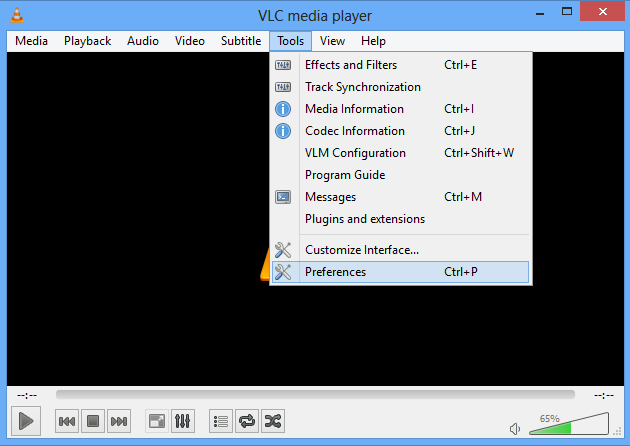 Location of preferences option
-
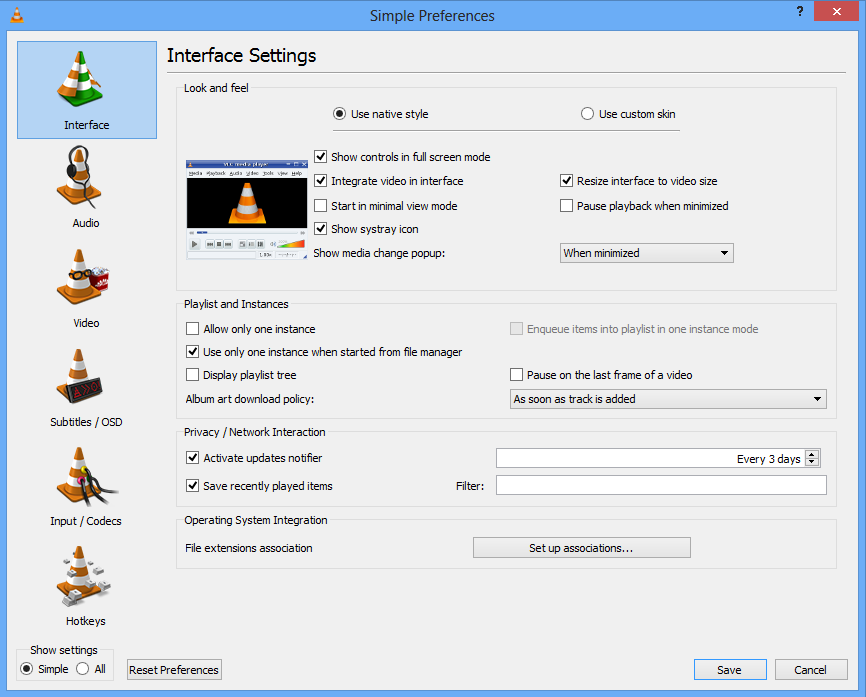 Preferences dialogue under Windows 8
-
 Preferences dialogue under macOS


You can edit settings for VLC by navigating to the menu toolbar, selecting Tools, and selecting Preferences (or by pressing Ctrl+P).
- To save your preferences, click Save.
- To show more options, switch the Show settings radio button to All.
Configuration File
The preferences stated in the options are stored in a configuration file. There is one configuration file per user, stored at:
- Unix, Linux and BSD:
~/.config/vlc/vlcrcsince 0.9. Before it was:~/.vlc/vlcrc - macOS:
~/Library/Preferences/org.videolan.vlc/vlcrc - Windows:
%appdata%\vlc\vlcrcis generic and is expanded to:- Windows 95/98/ME:
C:\Windows\Application Data\vlc\vlcrc - Windows NT/2000/XP:
C:\Documents and Settings\<username>\Application Data\vlc\vlcrc - Windows Vista/7/8/10:
C:\Users\<username>\AppData\Roaming\vlc\vlcrc
- Windows 95/98/ME:
- When used from the command line, sometimes there are unintended conflicts with settings in the config file; to ignore the config file, use:
--ignore-config
Your Preferences
To view/change your Wiki preferences go here.